> For the complete documentation index, see [llms.txt](https://documentation.civalgo.com/llms.txt). Markdown versions of documentation pages are available by appending `.md` to page URLs; this page is available as [Markdown](https://documentation.civalgo.com/documentation/operations/time-entry-in-logbook.md).
# Time Entry in Logbook
View video
Time entry in Logbook allows you to accurately track the hours worked, tasks completed, and resources used on each project. This feature makes it easier to manage, validate, and analyze time to optimize your teams’ daily organization.
## Prerequisites
[Manage Your Logbook Settings](/documentation/settings/manage-your-logbook-settings.md)
## Content
### **Main View:**
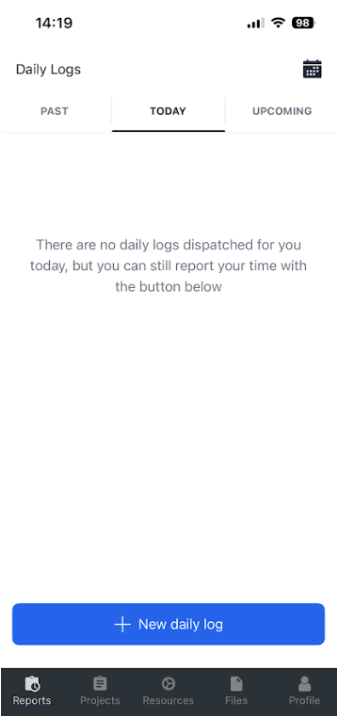
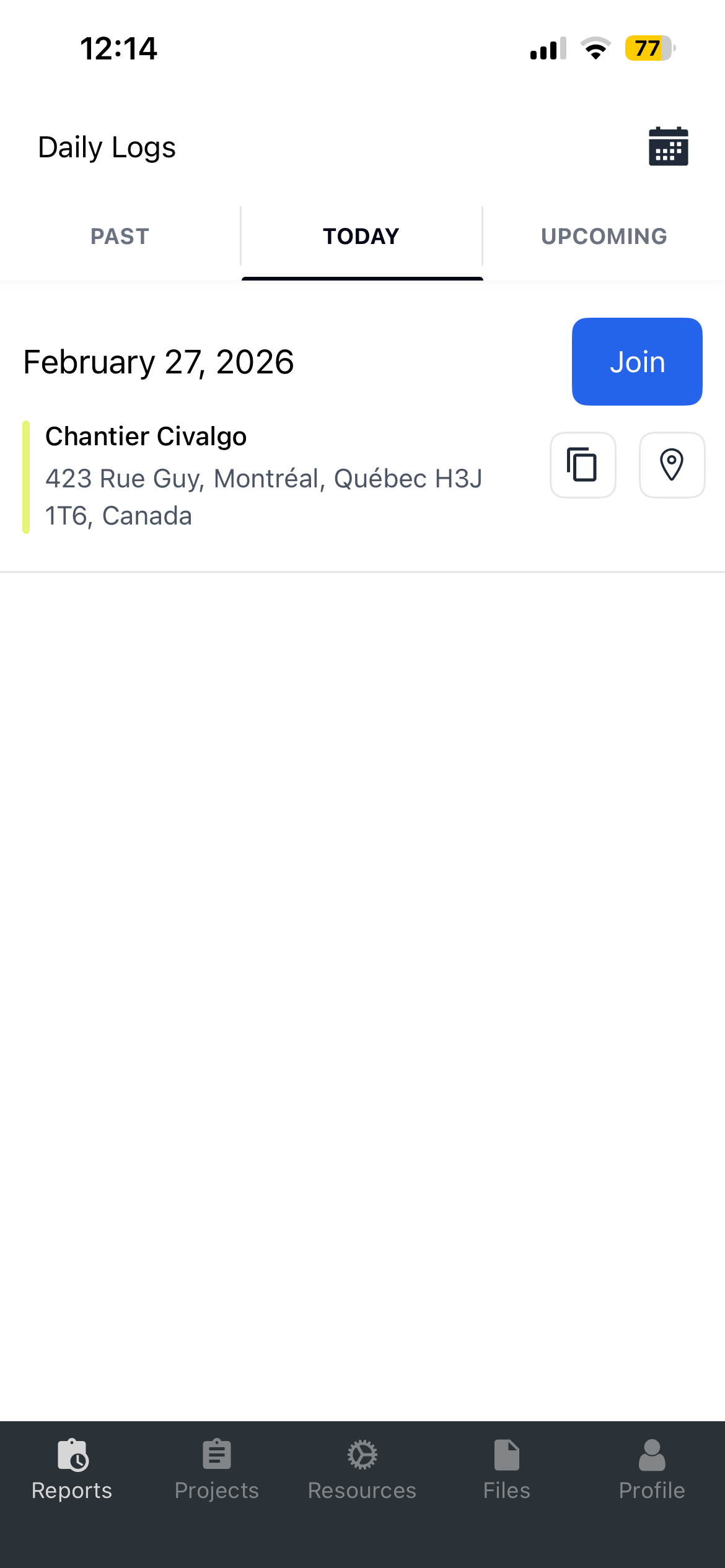
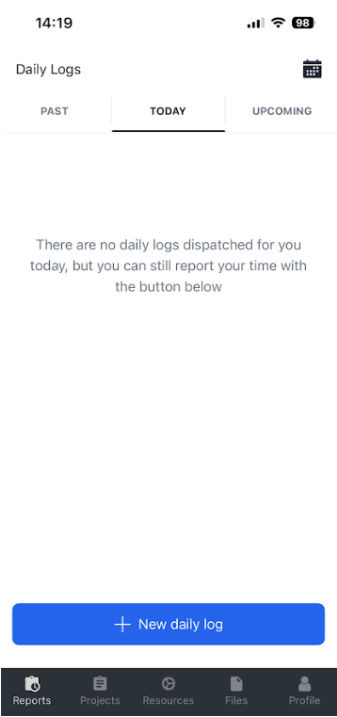
* For a new day, tap **“New Report”** or **“Join”** if a daily report is already available.
* You will find three tabs: **Past**, **Today**, and **Upcoming**, which group your past daily reports, today’s daily reports, and your next scheduled assignments.
* In the **“Today”** tab, either create a new report if no assignment has been made, or join your first team on a given project from the available options.
### **Daily Report Page**
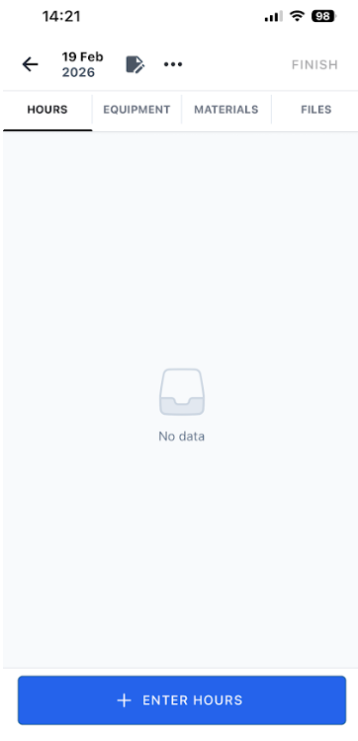
* Add **notes** to your report using the button at the top of the page.
* View your project information with the three-dot menu.
* See available tabs: **Hours**, **Equipment**, **Materials**, **Files**.
* Complete your day by tapping **“FINISH”** in the top right.
* Exit your report to return later using the back arrow at the top left.
### **Entering Hours**
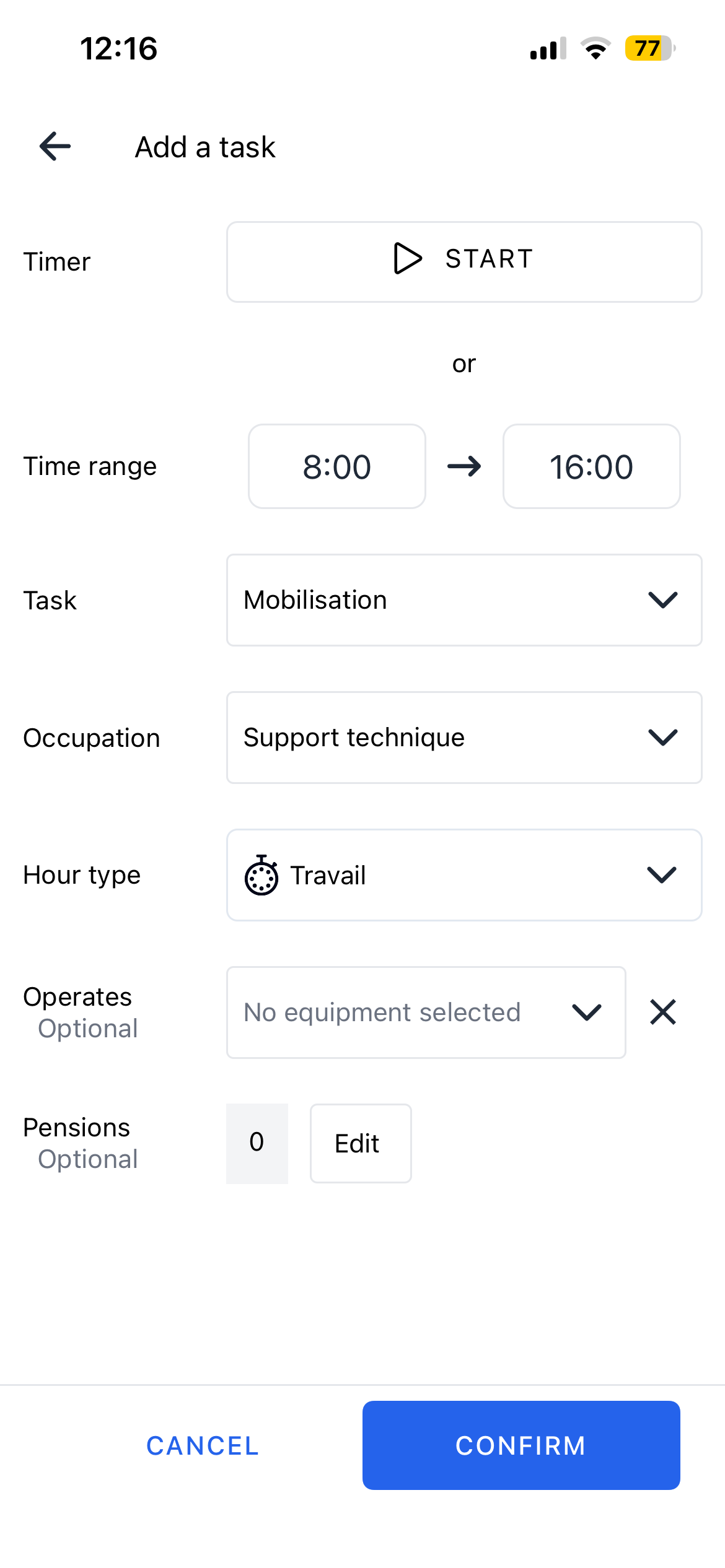
* Go to the **“Hours”** tab and tap **“Time Entry.”**
* Fill in the required fields:
**Work period**
* Start the timer or manually enter hours worked, depending on your company’s settings.
**Project**
* Select the project the time is linked to.
**Task**
* Specify the task performed.
**Work type**
* Indicate the type of work done.
**Equipment**
**(if applicable):** Link any equipment used to the time block.
**Pensions**
Choose applicable bonuses for the day.
* Once validated, your time block is created.
* To add another block, tap **“Time Entry”** again and enter the details for the next task.
### **Entering Equipment**
* Go to the **“Equipment”** tab and tap **“Add Equipment.”**
* Associate each piece of equipment with a specific task.
* View the time blocks for each added piece of equipment.
### **Entering Materials**
* Go to the **“Materials”** tab to select materials used for a task and add the quantity.
### **Files in Your Report**
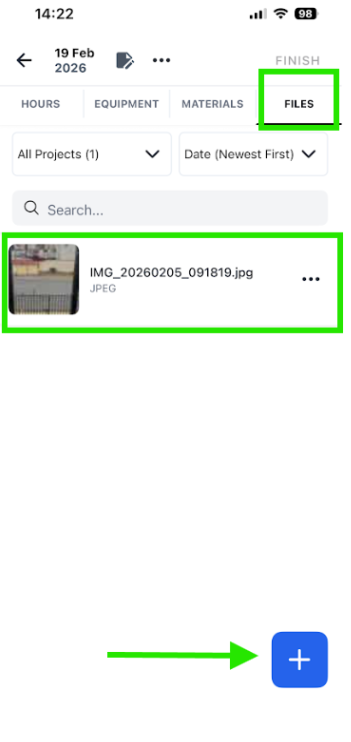
* In the **Files** tab, access files shared with you based on the project(s) in your report. You can quickly view all file types or download them as needed.
* Filter files by project or sort them by date or name.
* Add your own photos of the day using the **+** at the bottom of the page to share with your foreman and office team.
Complete your day by tapping **“Finish”** at the top right. Your time will then be compiled and can be reviewed.
Your hours will be reviewed by your team lead and then approved by the office.
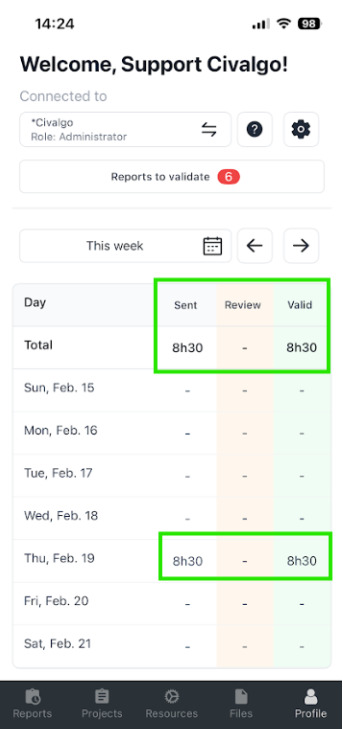
Your validated summary of hours for payroll will be displayed on your first **“Profile”** page.
You now know how to use Logbook for time entries! This tool is designed to be as simple as possible for users. Refer to this guide whenever needed.