> For the complete documentation index, see [llms.txt](https://documentation.civalgo.com/llms.txt). Markdown versions of documentation pages are available by appending `.md` to page URLs; this page is available as [Markdown](https://documentation.civalgo.com/documentation/resources/create-an-employee.md).
# Create an employee
Learn how to create or import employees into your organization. This is a required step to assign them to schedules or projects in Civalgo - whether or not they will be invited to use the platform.
### Prerequisites
[Create an organization](https://civalgo.gitbook.io/civalgo-docs/~/revisions/98zVhYBZyyDaVmVhbs86/documentation/resources/create-an-organization)
### Create a new employee
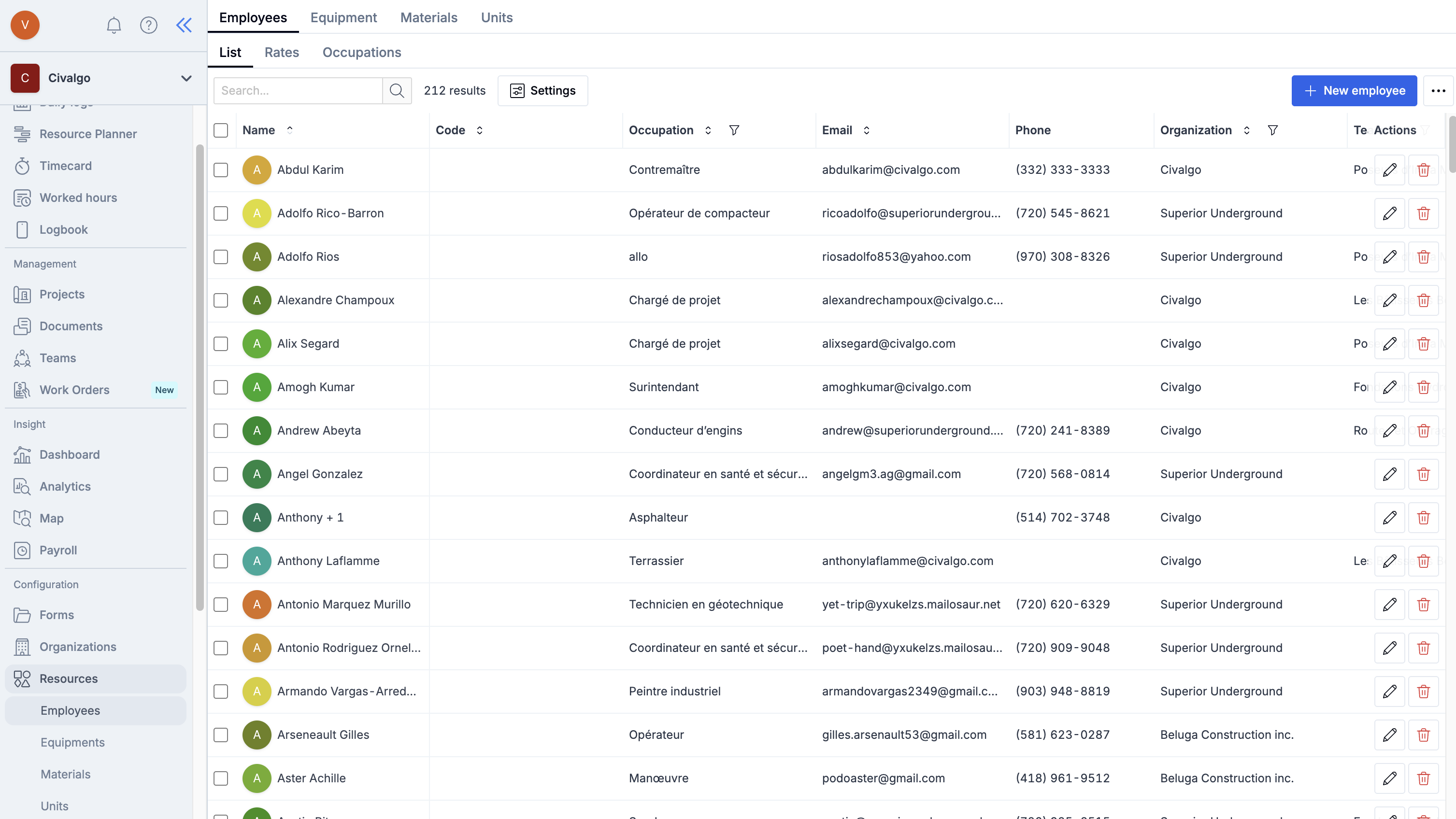
#### Step 1 – Go to the Employees page
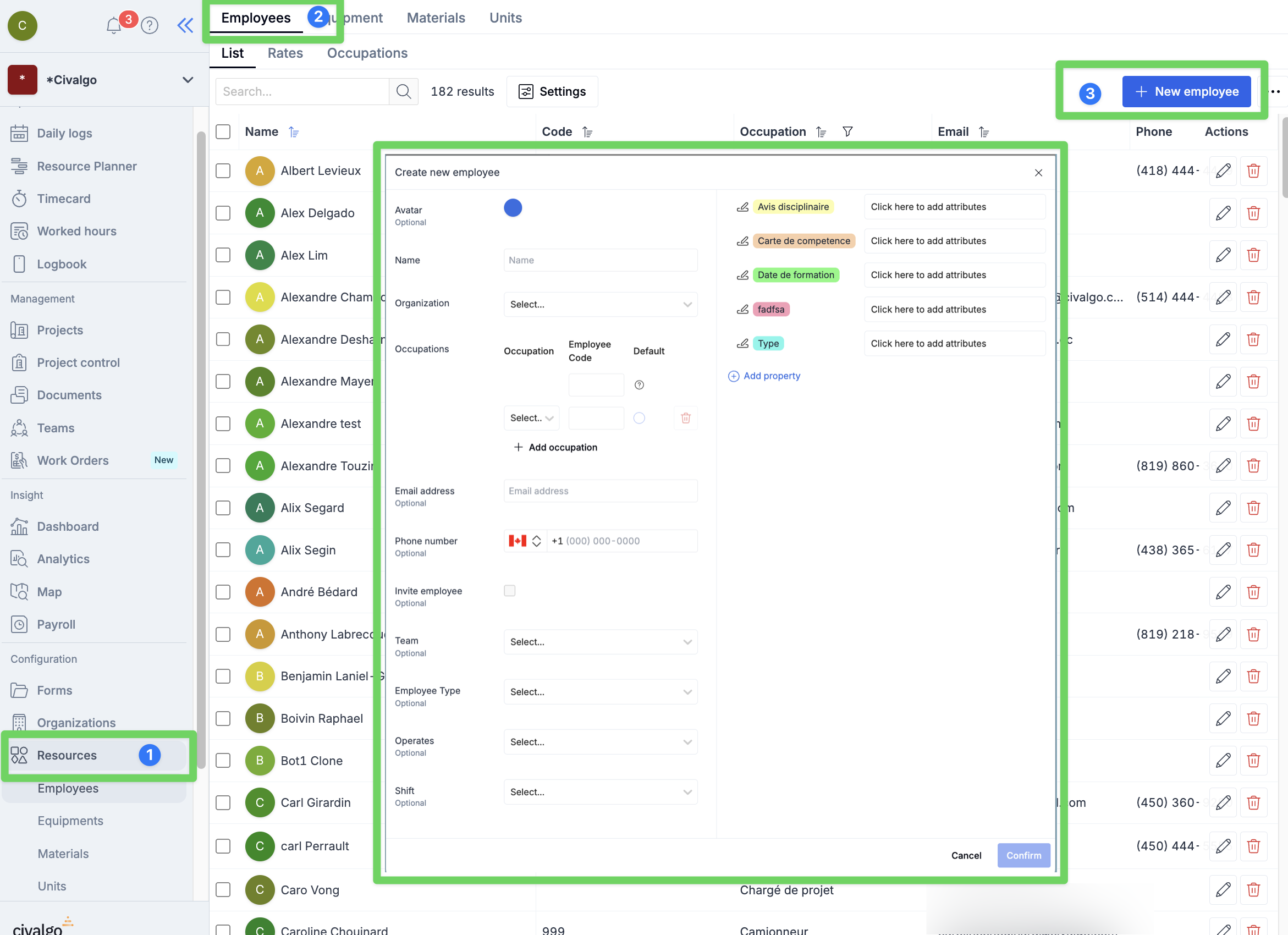
Click on **New Employee** (top right) to start.
#### Step 2 – Fill in the employee information
* **Name**: Used to identify the employee when selecting them from a list.
* **Code (*****optional*****)**: A unique internal ID for the employee.
* **Occupation**: Used to automatically assign costs based on the employee’s occupation.
* **Email Address (*****optional*****)**: Needed if you want to invite this person as a platform user
* **Phone Number (*****optional*****)**: Needed if you want to invite this person as a platform user. Also enables sending SMS messages to the employee.
* **Organization**: Used for cost tracking and to classify the employee as an internal or external resource.
* **Team (*****optional*****)**: Automatically assigns the employee to a daily log based on their team.
* **Operates (*****optional*****)**: Most commonly used equipment by this employee. Auto-added to daily logs when assigned.
* **Shift (*****optional*****)**: The employee’s default shift.
* If the team has a shift assigned, it will apply to all team members by default in the daily log.
* However, if the employee always works a different shift (regardless of the project), you can define it here — it will be auto-assigned whenever they’re added to a daily log.
* **Properties (*****optional*****)**: Custom fields to store extra employee details
#### Step 3 – Click Confirm to save
### Import Multiple Employees
#### Step 1 – Go to the Employees page
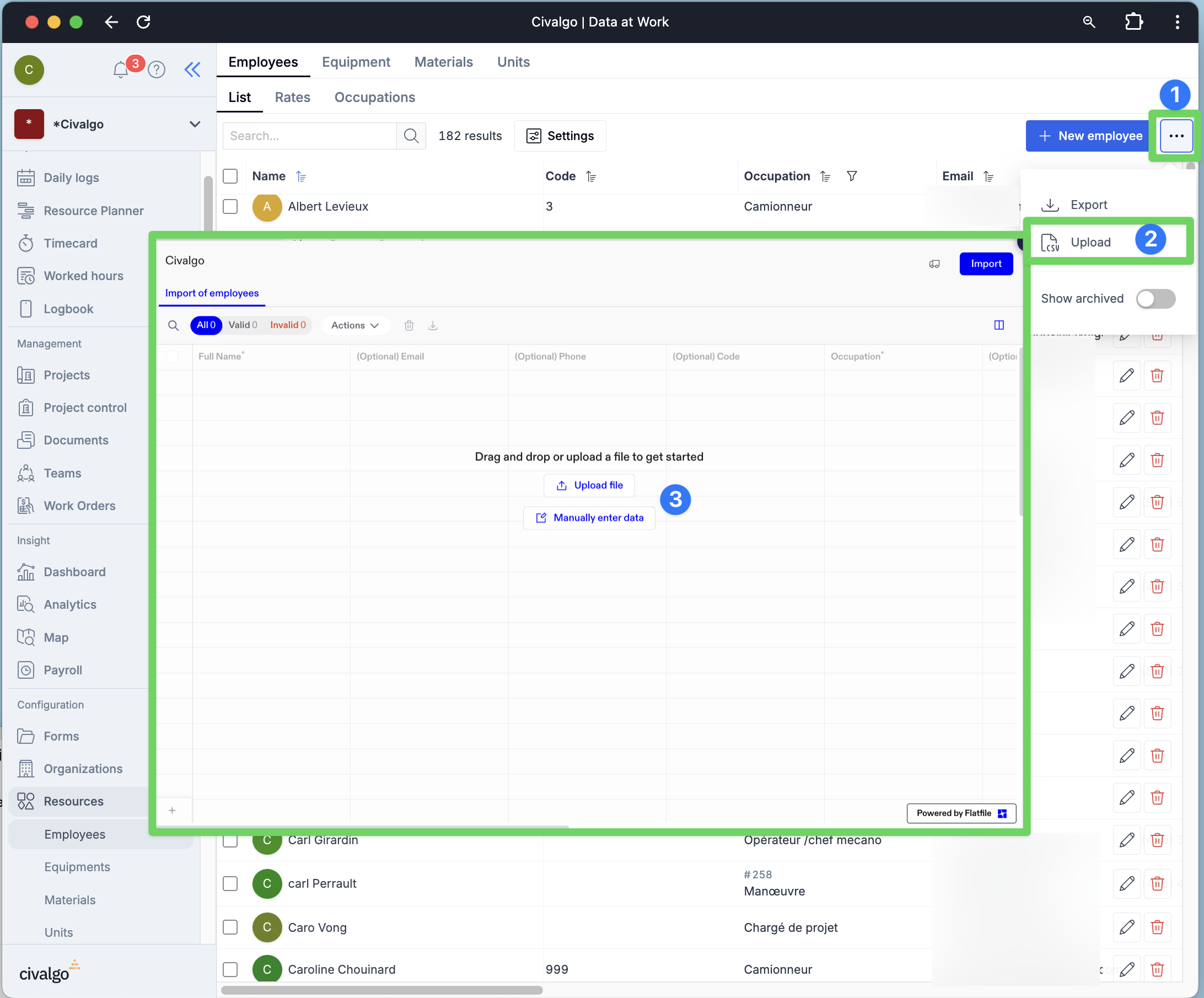
Click the **Options** button (top right), then select **Import**
#### Step 2 – Upload or paste employee data
* **Upload a file** in **.CSV format**
* → You’ll be asked to match your file’s columns with the system’s fields
* Or, **paste data manually** from Excel using the same column structure
#### Step 3 – Review & import
* Fix any errors flagged during validation
* Click **Import** to add your employees