> For the complete documentation index, see [llms.txt](https://documentation.civalgo.com/llms.txt). Markdown versions of documentation pages are available by appending `.md` to page URLs; this page is available as [Markdown](https://documentation.civalgo.com/documentation/management/modify-a-data-analysis-dashboard.md).
# Modify a data analysis dashboard
Modifying a data analysis dashboard enables you to tailor the displayed information according to your needs by adding or removing columns and filters. This ensures a more relevant and personalized analysis to better meet your objectives.
### Prerequisite
None
### **Access and Navigation in Dashboards**
1. **Access section**:
* Go to **Insight > Dashboard**
2. **Civalgo templates** :
* You will automatically land on the templates provided by Civalgo.
3. **Use of templates** :
* These templates can be selected and saved in your own dashboard folders.
### **Dashboard structure**
1. **Definition** :
* A dashboard is a collection of tiles governed by common filters.
2. **Independent Filters**:
* Some tiles can be excluded from global filters (e.g., the total budget of a project that is not date-dependent).
### **Tile Features**
1. **Exploration**:
* Hover over the top right corner of a tile and click **Explore from here** to access the data source.
1. **Modifications** :
* From the exploration, modify the columns and visualizations, then save in another dashboard.
### **Custom Alerts**
1. **Enable an alert** :
* Click the alert icon on a tile.
1. **Set Conditions** :
* Example: Alert if 80% of the budget is reached. Alert available for numerical data only.
2. **Selection of Frequency**:
* Receiving alerts via email at a set frequency (daily, weekly, etc.).
### **Access, Manage, and Share Dashboards**
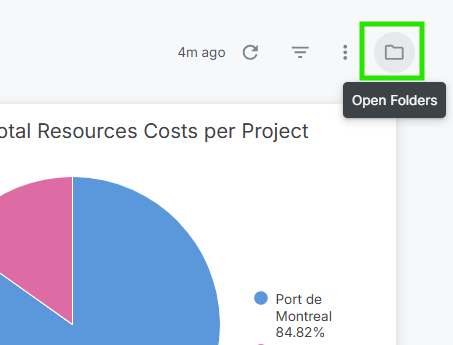
1. **Access to Files**:
* In the top right, click on the **folder** icon to:
* Navigate in **your folder**
* In the **group folder** (shared with all users who have access to the platform dashboards according to their permissions)
1. **Dashboard Management and Sharing**:
* In the right sidebar, click the three dots (⋮) next to the table > **Copy** or **Move** > Choose the destination folder.
* To do this, click the small arrow next to the folder name at the top of the sidebar, navigate to another folder to copy or move your table there, then confirm. In the right sidebar, click the three dots (⋮) next to the table > **Move to trash** > Confirm or cancel your action.
### **Editing a Tile or Dashboard**
1. **Enable edit mode:**
* Click on the three dots (⋮) at the top of the dashboard, then **Dashboard actions**.
2. **Edit a tile** :
* Click on ⋮ > **Edit** or on the **small pencil** at the top right of the tile.
* Edit directly in the dedicated window, press **Run**, then save.
3. **Arrange the tiles** :
* Use the six small dots to move a tile
* Resize from the bottom right corner
* Edit the titles of tiles or the dashboard
**Filter Management**
1. **Edit a filter** :
* Click on the three dots (⋮) at the top of the dashboard, then **Edit Dashboard**.
* On each filter, press ⋮ > **Edit filter** >
* **Settings >** Select the default time range or other options. **Useful Presets**: Example: **Previous Week** to always have the data from the previous week upon opening your dashboard.
* **Tiles to be updated**: Choose the tiles to update in relation to the current filter. You must also adjust all your filters when adding new tiles to your dashboard.
2. **Adding a Filter**:
* In **Edit** mode of your dashboard, in the **blue bar at the top,** select **Filter** and choose the filter field according to the available fields.
### **Add Content to the Dashboard**
1. **Possible Additions**:
* New Visualization (Data Analysis)
* Text / Markdown Area (for Titles or Logos)
* Company Logo: Use a markdown image code to include it using the function: \
2. **Filter Arrangement** :
* Extended or reduced display
* Location at the top or right
### **Backup and Planning**
1. **Save the dashboard:**
* Click on **Save** once all modifications are complete. To avoid any inconvenience, we suggest making backups regularly and then returning to edit mode to finish.
2. **Download or Schedule**:
* Click on the three dots (⋮) at the top of the dashboard, then **Schedule Delivery**
* Define:
* Email Title
* Recurrence: e.g. every Monday at 8 AM
* Recipients
* Format: PDF or CSV
* Delivery Filters: Define a project within the filters, or set a time range for each scheduled delivery.
* Advanced Options: For tables, we suggest checking the "Expand tables to display all rows" option to avoid data truncation and ensure all rows are visible upon delivery.
✅ **Conclusion**
* Use Civalgo templates to create your custom dashboards.
* Explore, modify, filter, and schedule your deliveries to automate project tracking.
* For each addition, check the associated filters to ensure data consistency.


) 2. **Filter Arrangement** :
* Extended or reduced display
* Location at the top or right
### **Backup and Planning**
1. **Save the dashboard:**
* Click on **Save** once all modifications are complete. To avoid any inconvenience, we suggest making backups regularly and then returning to edit mode to finish.
2. **Download or Schedule**:
* Click on the three dots (⋮) at the top of the dashboard, then **Schedule Delivery**
* Define:
* Email Title
* Recurrence: e.g. every Monday at 8 AM
* Recipients
* Format: PDF or CSV
* Delivery Filters: Define a project within the filters, or set a time range for each scheduled delivery.
* Advanced Options: For tables, we suggest checking the "Expand tables to display all rows" option to avoid data truncation and ensure all rows are visible upon delivery.
✅ **Conclusion**
* Use Civalgo templates to create your custom dashboards.
* Explore, modify, filter, and schedule your deliveries to automate project tracking.
* For each addition, check the associated filters to ensure data consistency.
2. **Filter Arrangement** :
* Extended or reduced display
* Location at the top or right
### **Backup and Planning**
1. **Save the dashboard:**
* Click on **Save** once all modifications are complete. To avoid any inconvenience, we suggest making backups regularly and then returning to edit mode to finish.
2. **Download or Schedule**:
* Click on the three dots (⋮) at the top of the dashboard, then **Schedule Delivery**
* Define:
* Email Title
* Recurrence: e.g. every Monday at 8 AM
* Recipients
* Format: PDF or CSV
* Delivery Filters: Define a project within the filters, or set a time range for each scheduled delivery.
* Advanced Options: For tables, we suggest checking the "Expand tables to display all rows" option to avoid data truncation and ensure all rows are visible upon delivery.
✅ **Conclusion**
* Use Civalgo templates to create your custom dashboards.
* Explore, modify, filter, and schedule your deliveries to automate project tracking.
* For each addition, check the associated filters to ensure data consistency.