> For the complete documentation index, see [llms.txt](https://documentation.civalgo.com/llms.txt). Markdown versions of documentation pages are available by appending `.md` to page URLs; this page is available as [Markdown](https://documentation.civalgo.com/documentation/settings/create-a-new-user.md).
# Create a new user
Invite a user into Civalgo or Logbook, assign permissions to them and choose their connection (SMS or email). Function reserved for administrators.
## Prerequisites
[Create an employee](https://civalgo.gitbook.io/civalgo-docs/~/revisions/98zVhYBZyyDaVmVhbs86/documentation/resources/create-an-employee)
## Invite or create a new user in Civalgo
### Access the settings
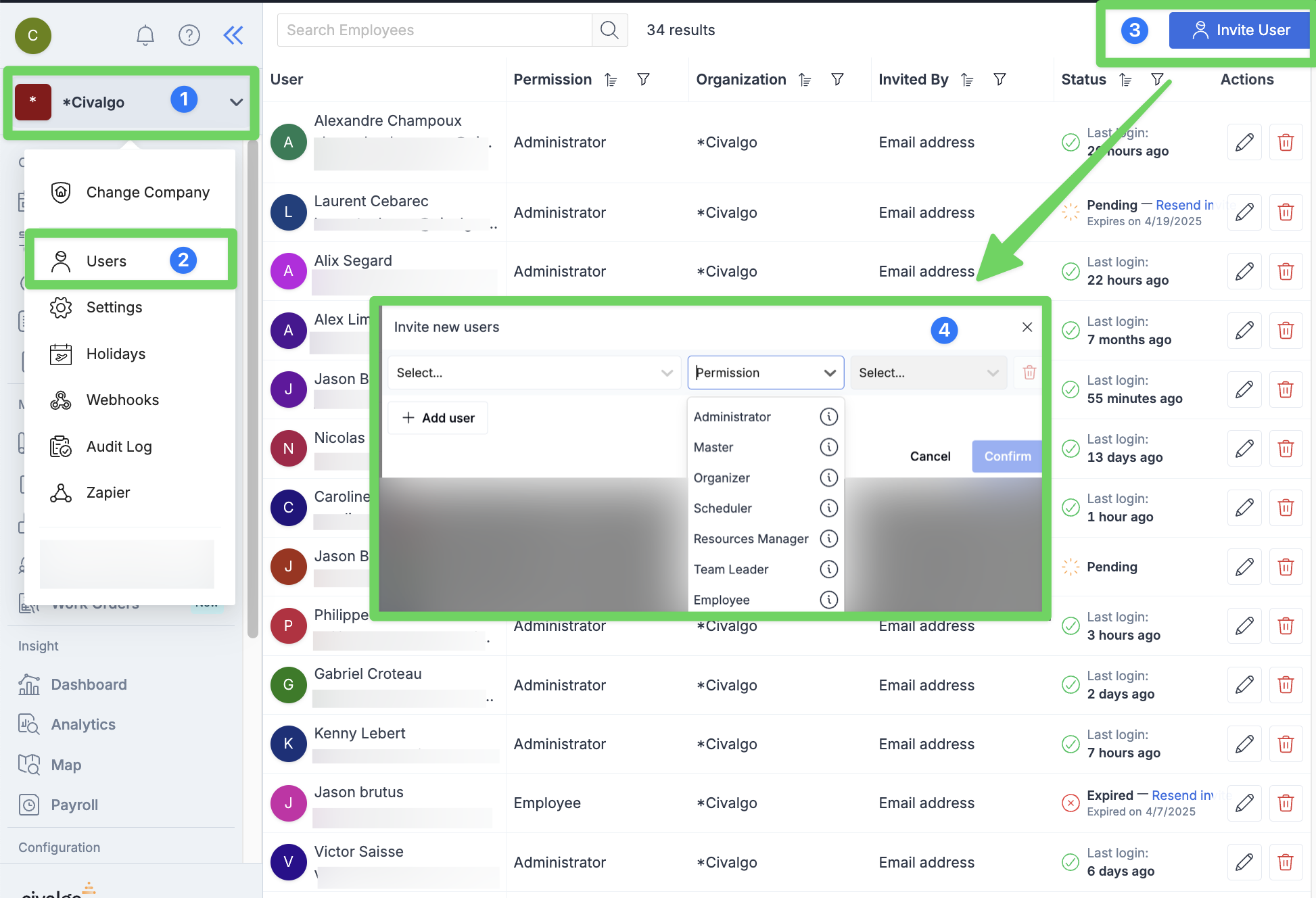
1. Click on your company name (top left corner)
2. Select **Users** from the dropdown menu
### Invite a user
Click **Invite a user** (top right button)
### Fill in the user details
1. Select the employee to invite
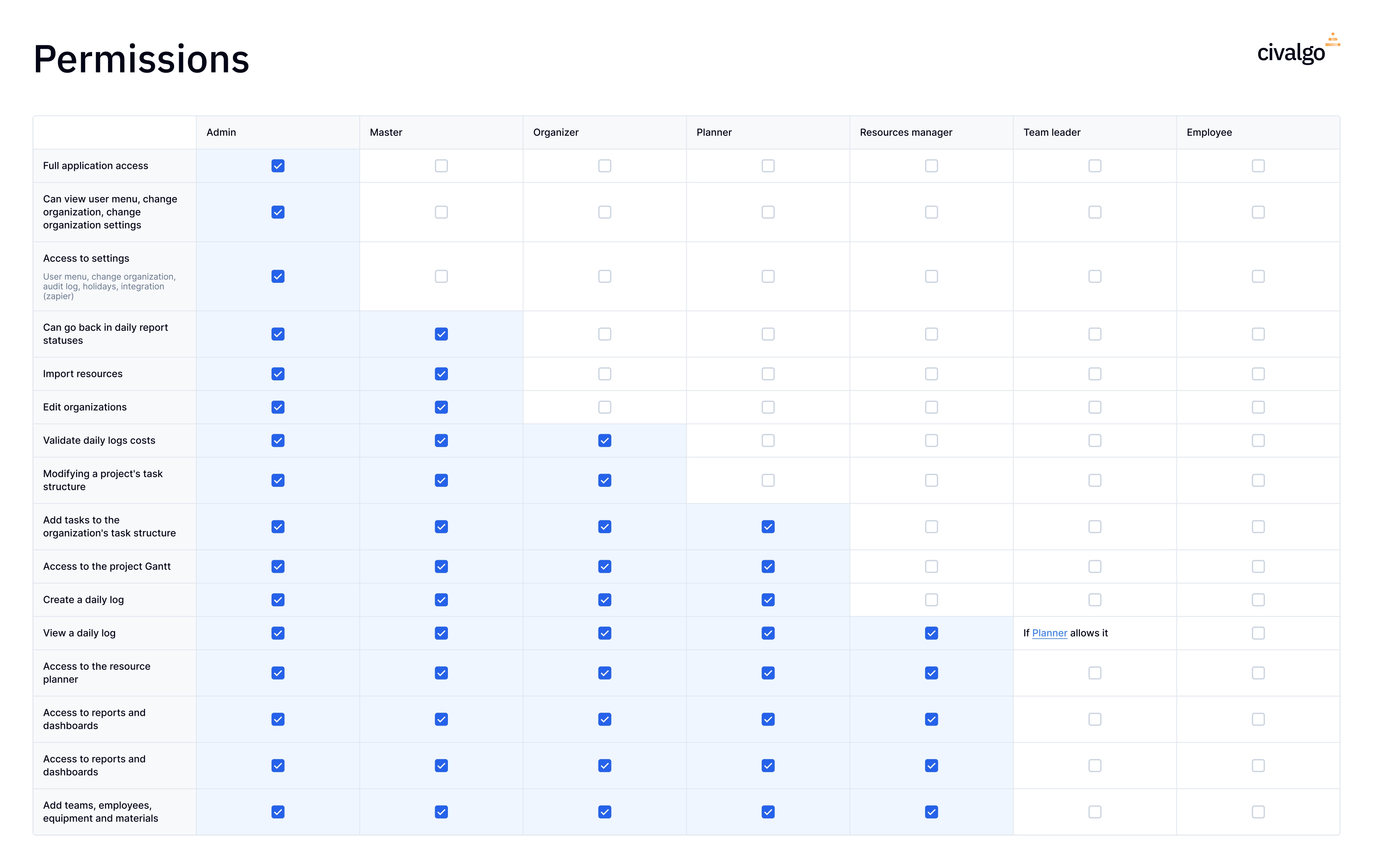
2. Set their permission level (e.g., Employee, Team Lead, Administrator…)
3. Choose the login method: **Email** or **SMS**
4. ⚠️ Important: the user must log in using the same method selected during the invitation.
### Send the invitation
* **Email**: the user receives a link to activate their account and set a password
* **SMS**: the user can go directly to the app and will receive a login code via text message to sign in
### 💡 Good to know
Once invited, a user automatically gets access to both **Civalgo** and **Logbook**. Just direct them to the right platform based on their role:
* **Logbook**: for field teams
* **Civalgo**: for planning, coordination, and management roles
### 📄 **Need help selecting the right permissions?**
Here’s a guide that summarizes the different permission levels available on the platform: